With the rising popularity of video content across social media platforms, having a powerful video editing app on your Android or iOS device has become essential. Whether you're a vlogger, filmmaker, or simply enjoy creating and sharing videos, having access to the right editing tools can greatly enhance your content. To help you navigate the vast sea of options, we have compiled a list of the top 10 video editing apps for Android and iOS in 2023. These apps offer a range of features, from basic editing tools to advanced effects and seamless sharing capabilities. Let's dive in!
Adobe Premiere Rush
Adobe Premiere Rush is a feature-packed video editing app designed specifically for mobile devices. With its intuitive interface, you can easily trim, crop, and combine video clips, add transitions, adjust colors, and apply filters. It also offers built-in templates and supports high-quality exports, making it an ideal choice for both beginners and professionals.
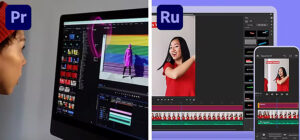
Adobe Premiere Rush offers a range of powerful editing tools that enable users to create professional-looking videos with ease. It supports multiple video tracks, allowing for layering of footage, images, and audio. Users can also take advantage of the intuitive drag-and-drop functionality to arrange and reorganize clips effortlessly.
In terms of editing capabilities, Premiere Rush offers a variety of options. Users can trim, cut, and crop their videos, adjust the playback speed, and apply transitions between clips to create smooth and engaging visual effects. Additionally, the application provides a collection of built-in filters, color presets, and customizable motion graphics templates that can be applied to enhance the overall aesthetic appeal of the videos.
Audio editing is another area where Premiere Rush excels. Users can import and manipulate audio files, adjust the volume levels, and apply audio effects to enhance the sound quality. The application also provides access to a vast library of royalty-free music tracks, allowing users to easily find the perfect background music for their videos.
Premiere Rush simplifies the process of creating videos optimized for various platforms, including social media. It offers pre-configured export settings for popular platforms like YouTube, Instagram, and TikTok, ensuring that the final video meets the specific requirements of each platform. Users can choose the desired resolution, aspect ratio, and encoding settings with just a few clicks.
iMovie
iMovie is a popular video editing app for iOS users, offering a straightforward and user-friendly interface. With iMovie, you can easily create polished videos by trimming clips, adding transitions, inserting titles, and incorporating sound effects. The app also allows for 4K resolution exports, making it a powerful tool for iPhone and iPad users.
One of the key features of iMovie is its simplicity and accessibility. It provides a streamlined and straightforward interface that makes it easy for beginners to get started with video editing. The application offers a wide range of pre-designed templates, themes, and effects that can be applied to videos with just a few clicks, allowing users to quickly enhance their videos and give them a professional look.
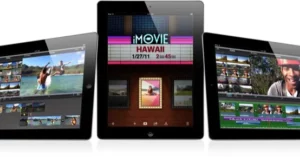
iMovie provides a timeline-based editing system, where users can import videos, photos, and audio files into their project and arrange them in a desired sequence. The timeline allows for precise editing, enabling users to trim, split, and combine clips effortlessly. Users can also add transitions between clips, apply filters and effects, adjust the video speed, and perform color correction to enhance the visual appeal of their videos.
The software also offers a variety of audio editing tools, allowing users to adjust the volume, fade in or out, and add background music or voiceovers to their videos. iMovie supports a wide range of audio formats and provides access to a library of royalty-free soundtracks that can be used to enhance the mood and atmosphere of the videos.
iMovie supports high-resolution video formats, including 4K and HDR, enabling users to create visually stunning videos with crisp detail and vibrant colors. Once the editing process is complete, users can export their videos in various formats and share them directly to social media platforms, such as YouTube, Facebook, and Vimeo, or save them to their devices for offline viewing.
In addition to its editing capabilities, iMovie also offers features for creating movie trailers and slideshows. The movie trailer templates provide a quick and easy way to create professional-looking trailers, complete with Hollywood-style graphics, text overlays, and dramatic soundtracks. The slideshow feature allows users to turn their photos and videos into captivating presentations, with customizable transitions and background music.
iMovie is tightly integrated with other Apple applications and services, making it convenient for users who are already immersed in the Apple ecosystem. It seamlessly works with iCloud, allowing users to access their projects across multiple devices and collaborate with others in real-time. iMovie projects can also be transferred to more advanced video editing software, such as Final Cut Pro, for further refinement.
Kinemaster
Kinemaster is a versatile video editing app available for both Android and iOS devices. It offers a wide range of features, including multi-layer editing, blending modes, audio mixing, and chroma key. Kinemaster also provides precise control over video speed and supports 4K exports, making it a favorite among content creators.
One of the standout features of Kinemaster is its user-friendly interface, which is designed to be intuitive and easy to navigate. Whether you're a beginner or an experienced video editor, you can quickly familiarize yourself with the app's layout and functionality. The straightforward design ensures that users can jump right into editing without feeling overwhelmed.
With Kinemaster, users have access to a variety of editing options. They can trim and crop video clips, add transitions, apply visual effects, insert text overlays, and incorporate audio tracks. The app supports multiple layers, allowing users to overlay images, stickers, and even additional videos onto their main footage. This layering capability adds depth and creativity to the editing process.
The app also provides precise control over video speed and audio adjustments. Users can speed up or slow down their clips, create time-lapse videos, and add audio effects to enhance the overall visual and auditory experience. Kinemaster supports multiple audio tracks, enabling users to mix background music, voiceovers, and sound effects seamlessly.
Another noteworthy feature of Kinemaster is its comprehensive color adjustment tools. Users can fine-tune the brightness, contrast, saturation, and hue of their videos to achieve the desired visual aesthetic. Additionally, Kinemaster offers a wide range of filters and effects that can be applied to enhance the mood or style of the video. To further personalize their videos, users can leverage the app's vast collection of stickers, animations, and text styles. These creative elements can be added to the video frames, allowing users to express their unique style and make their videos more engaging. Exporting videos from Kinemaster is simple and flexible. Users can choose from various output resolutions, including high-definition (HD) and 4K, ensuring that their videos are compatible with different platforms and devices. The app also provides options for sharing videos directly to social media platforms like YouTube, Instagram, and Facebook.
FilmoraGo
FilmoraGo is a user-friendly video editing app suitable for both beginners and enthusiasts. It offers an extensive collection of filters, effects, and transitions, allowing you to add a professional touch to your videos. FilmoraGo also includes features like reverse playback, slow motion, and voiceover recording, making it a comprehensive editing tool.
One of the key features of FilmoraGo is its intuitive interface, which is designed to be simple and easy to navigate. The app provides a streamlined editing experience, allowing users to quickly import their videos, apply edits, and export the final result. With its straightforward layout and clear icons, users can easily find the tools and features they need to create their videos. FilmoraGo offers a variety of editing options to enhance videos. Users can trim and merge video clips, apply transitions between scenes, add text overlays, and incorporate music or voiceovers.
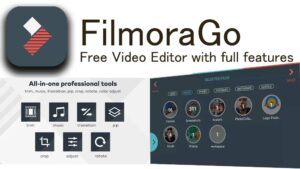 The app supports multiple video and audio tracks, enabling users to overlay different elements and create layered effects. This flexibility allows for greater creativity and storytelling in the editing process. The app also provides a range of visual effects and filters to enhance the overall look and feel of the videos. Users can adjust brightness, contrast, saturation, and other parameters to achieve the desired visual style. FilmoraGo offers a collection of pre-set filters that can be applied with a single tap, as well as the option to create custom filters for a unique look.
In addition to editing tools, FilmoraGo offers various themes and templates to give videos a polished and professional appearance. These templates provide pre-designed layouts, transitions, and effects that can be easily applied to videos. Users can choose from a wide range of themes, such as travel, birthday, wedding, and more, to match the mood and purpose of their videos. FilmoraGo also supports advanced features such as slow-motion effects, reverse playback, and picture-in-picture effects. These features allow users to add a creative touch and make their videos more engaging and dynamic. Furthermore, the app provides the ability to adjust video speed, crop and rotate footage, and correct video stabilization issues.
Exporting videos from FilmoraGo is a seamless process. Users can choose from various output resolutions, including high-definition (HD) and 4K, ensuring compatibility with different platforms and devices. The app also offers options for sharing videos directly to social media platforms, including YouTube, Instagram, Facebook, and more.
PowerDirector
PowerDirector is a powerful video editing app available for both Android and iOS platforms. It offers a wide range of features, including multi-track editing, video stabilization, green screen effects, and motion tracking. PowerDirector also supports 4K video exports and provides a library of royalty-free music and sound effects.
PowerDirector offers a range of advanced editing features that cater to professional requirements. Users can utilize keyframe animation to add intricate movements and effects to their videos. The software also supports multi-cam editing, enabling users to synchronize and switch between multiple camera angles for a dynamic viewing experience. Additionally, PowerDirector provides tools for audio editing, including noise reduction, audio restoration, and audio mixing capabilities.
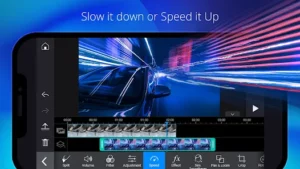
To further enhance the editing process, PowerDirector offers a comprehensive library of royalty-free stock media, including images, audio tracks, and sound effects. Users can easily access these assets within the software and incorporate them into their projects to add depth and creativity.
Exporting videos from PowerDirector is a straightforward process. The software provides a wide range of output options, allowing users to export their videos in various formats and resolutions, including high-definition (HD) and 4K. PowerDirector also offers direct sharing options to popular social media platforms, enabling users to easily showcase their work to a wider audience.
PowerDirector provides additional features and functionalities through its subscription-based model. The premium versions offer access to more effects, templates, and advanced editing tools. It also provides cloud storage options for seamless project synchronization across multiple devices.
LumaFusion
LumaFusion is a professional-grade video editing app for iOS devices. LumaFusion offers a wide range of editing tools and effects that enable users to enhance their videos creatively. Users can trim, split, and splice clips, adjust playback speed, and apply transitions between scenes to achieve smooth and engaging visual effects. The application also provides advanced features such as keyframing, color correction, and audio mixing, allowing for precise control over every aspect of the video.
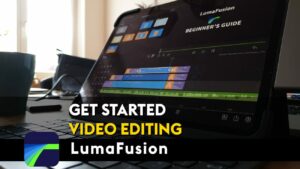
With a comprehensive set of audio editing tools, LumaFusion ensures that the sound quality of videos is equally impressive. Users can import audio files, adjust volume levels, apply effects, and even mix multiple audio tracks to create a professional-grade audio experience. The app supports external microphones, making it an excellent choice for vloggers, podcasters, and anyone who values high-quality audio.
LumaFusion boasts a robust media library, enabling users to easily manage their assets within the app. It supports importing videos, images, and audio files from various sources, including cloud storage services and external drives. Users can organize their media files into folders, tag them for quick access, and even preview them in the media library before adding them to their projects. LumaFusion boasts a robust media library, enabling users to easily manage their assets within the app. It supports importing videos, images, and audio files from various sources, including cloud storage services and external drives. Users can organize their media files into folders, tag them for quick access, and even preview them in the media library before adding them to their projects.
Another notable feature of LumaFusion is its support for external displays. Users can connect their iOS devices to an external monitor or television via HDMI or AirPlay, allowing for a larger preview screen and more precise editing. This feature is especially useful for professional editors who require a larger workspace and a more accurate representation of their videos.
LumaFusion excels in terms of export options as well. It provides users with a wide range of export settings and presets, ensuring compatibility with various platforms and devices. Users can export videos in different resolutions, aspect ratios, and file formats, including popular options like MP4 and ProRes. The application also supports exporting projects with transparency, which is useful for creating graphics and overlays.
InShot
InShot is a popular and user-friendly video editing application available for both Android and iOS devices. With its comprehensive set of features and intuitive interface, InShot has gained a reputation as a go-to choice for content creators, social media enthusiasts, and anyone who wants to edit videos with ease.
One of the standout features of InShot is its simple and intuitive editing tools. The application allows users to trim, cut, and merge video clips effortlessly, enabling them to create seamless transitions and captivating storytelling. Users can also adjust the playback speed of their videos, adding a dynamic touch or creating slow-motion effects to enhance the visual impact.

InShot offers a variety of customization options to make your videos truly unique. Users can apply filters and adjust the color balance to achieve the desired mood and aesthetic. The application also provides a range of creative video effects, such as glitch effects, light leaks, and overlays, which can add an artistic flair to your videos. Additionally, users can add text and stickers to their videos, allowing for personalization and effective communication of messages.
The app's audio editing features are equally impressive. InShot enables users to add background music from their device or choose from a library of pre-selected tracks. Users can adjust the volume levels of both the video's original audio and the added background music, ensuring a balanced and professional sound mix. InShot also allows for voiceovers, making it an excellent choice for narrations, tutorials, or vlogs.
InShot caters to the social media era by providing tailored export options for various platforms. Users can select the optimal aspect ratio for platforms like Instagram, TikTok, YouTube, and more, ensuring that their videos fit perfectly without any cropping or stretching. Furthermore, InShot supports exporting videos in high resolutions, including 4K, allowing for stunning visuals even on large screens.
Beyond video editing, InShot offers additional features that further enhance its value. Users can create engaging photo slideshows by combining images with customizable transitions and music. The application also includes basic photo editing tools, allowing users to crop, rotate, and adjust the colors of their images before incorporating them into their videos.
InShot's user-friendly interface and intuitive navigation make it accessible to users of all skill levels. The application provides a streamlined editing experience without sacrificing functionality, making it an ideal choice for both beginners and experienced video editors. InShot's clean and straightforward design allows users to focus on their creativity without being overwhelmed by a complex interface.
Quik
Quik, developed by GoPro, is an impressive video editing application that allows users to transform their footage into captivating videos with just a few taps. Available for both Android and iOS devices, Quik is designed to make the editing process quick, easy, and enjoyable for users of all skill levels.
The defining feature of Quik is its automatic editing capabilities. The app analyzes your footage, intelligently selects the best moments, and automatically applies transitions, effects, and music to create a polished and professional-looking video. This automated editing feature saves you time and effort while ensuring that your videos have a dynamic and engaging visual style.
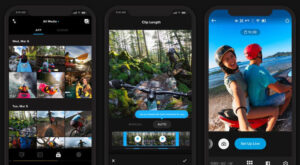
Quik provides users with a wide range of customization options to personalize their videos. Users can choose from a variety of pre-designed themes that align with different moods and styles, such as action-packed, playful, or cinematic. Each theme includes a unique set of transitions, filters, and music, allowing you to create a video that matches your desired aesthetic.
For those who prefer a hands-on approach, Quik also offers manual editing tools. Users can manually trim and rearrange clips, adjust playback speed, add text overlays, and apply filters to further enhance their videos. This flexibility allows for more precise control over the editing process and enables users to tailor their videos to their specific vision.
Quik makes it easy to add music to your videos by providing a vast library of licensed tracks to choose from. You can explore different genres and moods, or even import your own music files to create a personalized soundtrack. The app automatically syncs the selected music with the video's pace and transitions, ensuring a seamless audiovisual experience.
Magisto
Magisto is a powerful video editing and storytelling application that enables users to transform their raw footage into professionally edited videos with ease. Available for both Android and iOS devices, Magisto offers a range of features and tools that make video editing accessible to users of all skill levels.
The standout feature of Magisto is its smart video editing capabilities. Using artificial intelligence algorithms, Magisto analyzes your footage, identifies the best moments, and automatically applies edits, transitions, and effects to create a visually stunning and engaging video. This automated editing process saves time and effort while ensuring that your videos have a polished and professional look.

Magisto provides users with a variety of editing styles and templates to choose from, catering to different moods, themes, and occasions. Whether you want a playful and energetic video or a sentimental and heartfelt one, Magisto has a range of options to suit your preferences. Each editing style includes a unique combination of effects, transitions, and music, allowing you to create videos that evoke the desired emotions.
In addition to its automated editing features, Magisto offers manual editing tools for users who prefer a hands-on approach. You can trim and rearrange clips, add text overlays, adjust the volume of the video's audio, and apply filters to enhance the visual appeal. These manual editing options provide flexibility and allow you to personalize your videos according to your specific vision.
Magisto's extensive music library enables you to add the perfect soundtrack to your videos. You can choose from a wide selection of licensed tracks across various genres and moods, ensuring that your video's music complements its content and sets the right tone. Alternatively, you can upload your own music files to create a truly personalized audio experience.
The sharing capabilities of Magisto are seamless and convenient. Once you've completed your video, you can directly share it on social media platforms such as Instagram, Facebook, and YouTube. This allows you to easily showcase your creative work and share your videos with friends, family, and followers, fostering engagement and connection.
Magisto's user-friendly interface and intuitive navigation make it accessible to users of all levels of expertise. The app's streamlined design and straightforward controls ensure a smooth editing experience, making it easy for beginners to create impressive videos without prior editing knowledge.
Funimate
Funimate is a popular video editing application available for both Android and iOS devices. It is known for its emphasis on creating fun and entertaining videos with a wide range of visual effects and animations. With its user-friendly interface and diverse features, Funimate appeals to users of all ages and skill levels, from casual video enthusiasts to social media influencers.
One of the key features of Funimate is its extensive library of visual effects and animations. The app offers a vast collection of stickers, filters, transitions, and text effects that can be applied to videos. These effects range from quirky and playful to artistic and dynamic, allowing users to add a unique touch to their videos and make them stand out.

Funimate provides users with a variety of editing tools to customize their videos. Users can trim and merge video clips, adjust the playback speed to create slow-motion or fast-forward effects, and add music to enhance the mood of their videos. The intuitive interface makes it easy to navigate through the editing process and experiment with different effects and adjustments.
One of the highlights of Funimate is its social and community-driven aspect. Users can explore and discover videos created by other Funimate users, follow their favorite creators, and engage with their content through likes, comments, and shares. Funimate also allows for collaboration, enabling users to create videos together and share their creative visions.
Funimate offers seamless sharing options to make it easy to share your videos with friends and followers. Users can directly share their videos on popular social media platforms like Instagram, TikTok, and YouTube. The app optimizes videos for each platform, ensuring they look their best when shared. Additionally, Funimate provides the option to save videos to your device's gallery for personal collection or further sharing.
With its focus on fun and creativity, Funimate provides an enjoyable video editing experience for users looking to add excitement and visual flair to their videos. Whether you're creating content for social media, sharing memories with friends and family, or simply expressing your creativity, Funimate offers a diverse set of tools and effects to help you bring your videos to life in an engaging and entertaining way.